Configuration GUI (config-gui)
Learning objectives
After reading this page you will understand:
- What the Config Builder GUI is and how it relates to
pm-config-gen,pm-cverifier, and the engine itself - Every way to run the application — a single container command, a pre-built image artifact, or a local development setup — and what each one needs
- How the interface is organised: the three-pane layout, personas, tabs, and the live diagnostics drawer
- The core exchange concepts each tab configures, with links to the reference chapters that explain them in depth
- How to add symbols with the IPO dialog, configure market makers, and read the effective-value Symbol Overview
- How to import, validate, and export a configuration
- How to deploy the GUI in production and troubleshoot common problems
Overview
The Config Builder (config-gui) is a browser-based application for
creating, importing, editing, validating, and exporting an
engine_config.yaml file interactively.
It is a companion to, not a replacement for, the
pm-config-gen CLI.
Both produce the same file format, but they suit different situations:
| Use the… | when you want to… |
|---|---|
GUI (config-gui) |
build a config by filling in forms, see mistakes highlighted as you type, import and edit an existing file, or learn the schema through inline help. |
CLI (pm-config-gen) |
script config generation in CI, or drive it from a shell with repeatable flags. |
The GUI adds three things the CLI cannot offer: live cross-field validation (undefined risk levels, port collisions, out-of-order schedules, and more), progressive disclosure so beginners see only a handful of fields while experts see everything, and a full round-trip import of existing configs.
Where it lives
The application is a self-contained Node.js/TypeScript project in the
web-apps/config-gui/ directory. It is independent of the
Python engine and needs no Python to run — with one optional exception, the
server-side verification feature.
Its output is held to the same correctness bar as the CLI: a golden-file test
pipes generated configs through the engine's own load_engine_config() parser,
so anything the GUI exports is guaranteed to load (see
How the GUI stays valid).
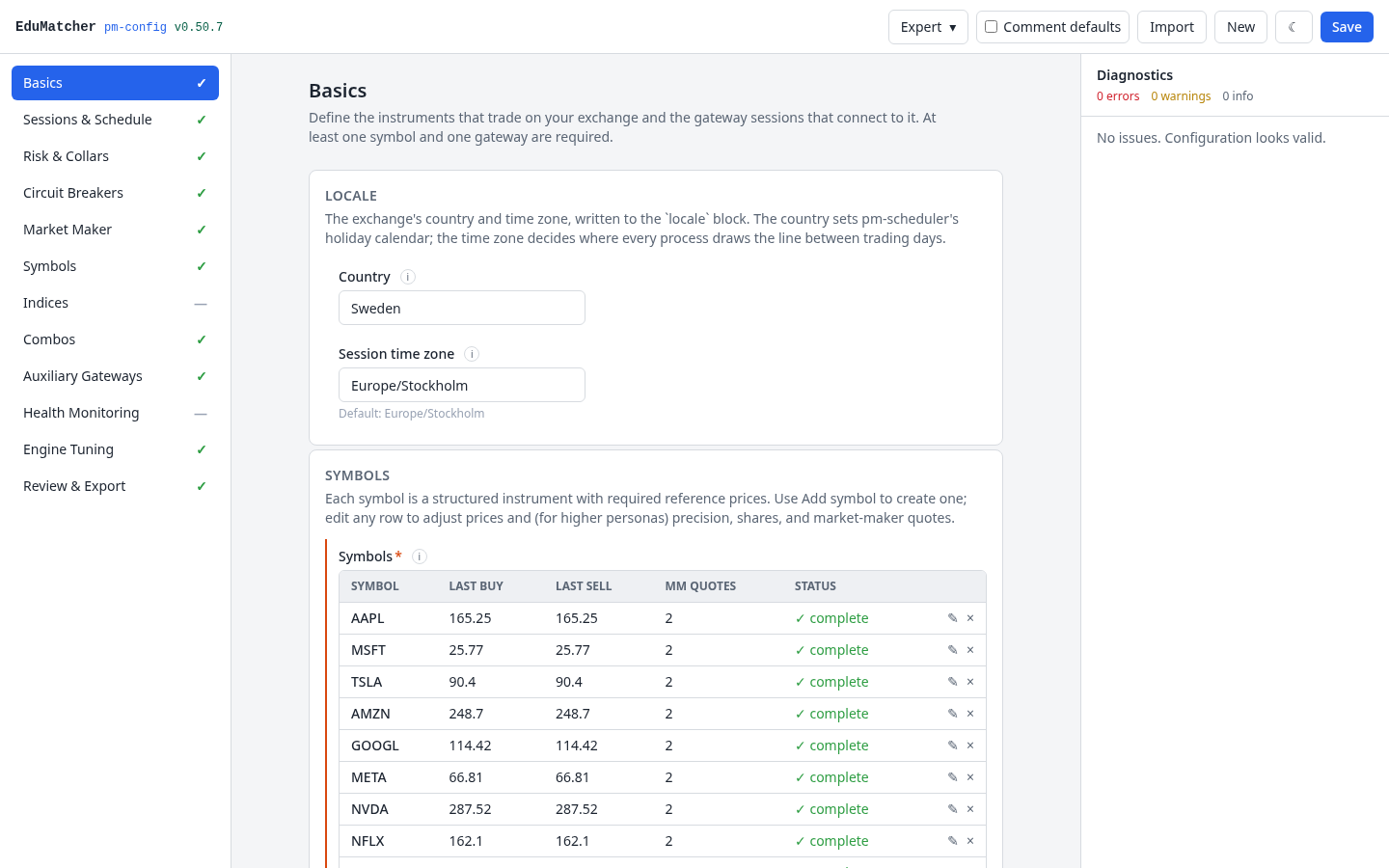
The s10-complex example imported at the Expert persona. The top bar holds the persona
switcher, Comment defaults, Import, New, the theme toggle and Save; the
navigation on the left shows every tab's status glyph; the Basics form fills the centre;
the diagnostics drawer on the right reports no issues.
Prerequisites
What you need depends on how you intend to run the application.
Running the container (recommended for most users)
| Requirement | Notes |
|---|---|
| Podman ≥ 4 or Docker ≥ 24 | Podman is preferred; Docker works equally well. The make up target auto-detects which one is installed. |
| Compose plugin | podman compose (Podman 5+ built-in, or podman-compose) or docker compose (the V2 plugin — not the legacy docker-compose binary). Verify with docker compose version / podman compose version. |
| GNU Make | Only needed for the Makefile targets. On macOS, install via Homebrew (brew install make) or the Xcode Command Line Tools. |
| macOS only | A Podman machine must be running. make up starts it automatically; to do it manually run podman machine init && podman machine start. |
No Node.js, npm, or Python is required on the host for the container path — every build step happens inside the image.
Local development
| Requirement | Notes |
|---|---|
| Node.js ≥ 20 | Developed and tested on Node 22 and Node 26. Install via nvm, fnm, or your OS package manager. |
| npm ≥ 10 | Bundled with Node.js ≥ 20. Verify with npm --version. |
| GNU Make | Optional but convenient for the Makefile targets. |
Optional: server-side verification
Needed only if you want the Verify with pm-cverifier button on the Review tab to work:
| Requirement | Notes |
|---|---|
| Python environment | The repository's Poetry environment installed at the repo root (poetry install). |
pm-cverifier on PATH |
Provided by the Poetry env, or set CVERIFIER_COMMAND="poetry run pm-cverifier" so the backend can locate it. See Config Verifier. |
Browser
Any modern browser (Chrome/Edge ≥ 110, Firefox ≥ 115, Safari ≥ 16). The application uses no browser extensions and runs fully offline once loaded.
Running the application
There are three supported ways to start the GUI, in increasing order of setup effort. Pick the one that matches your situation.
| Method | Best for | Needs | URL |
|---|---|---|---|
| Container stack | Most users; production | Podman/Docker + Make | http://localhost:8092 |
| Pre-built image artifact | Offline hosts, no repo clone | Podman/Docker only | http://localhost:8092 |
| Local development | Contributing to the GUI itself | Node.js + npm | http://127.0.0.1:8192 |
Option 1 — One command with the container stack
If you have a repository checkout and a container runtime, this is the fastest
path. From the web-apps/config-gui/ directory:
make up auto-detects Podman or Docker (preferring Podman), starts the Podman
machine on macOS if needed, builds the image, and starts the stack in the
background. Open http://localhost:8092 once the build completes.
make down     # stop and remove the stack
make logs     # follow the container log
make ps       # show stack status
make help     # list every available target
Prefer to drive the runtime directly? docker compose up --build (or
podman compose up --build) does the same thing. Deployment details — the
image layout, environment variables, and building behind a corporate proxy —
are covered under Deployment and operations.
Option 2 — A pre-built image artifact
For a host without a repository clone — or to ship a ready-to-run image — the
distributable artifact is a self-contained OCI image archive built with
make cdist:
The archive contains everything the application needs at runtime (Node.js runtime, compiled frontend, and the Fastify backend) with no external dependencies. Load and run it on the target host:
# Podman
podman load  --input edumatcher-config-gui-<version>.tar.xz
podman run -d --name config-gui -p 8092:8092 edumatcher-config-gui:<version>

# Docker
docker load  --input edumatcher-config-gui-<version>.tar.xz
docker run -d --name config-gui -p 8092:8092 edumatcher-config-gui:<version>
The load command prints the exact image tag, e.g. edumatcher-config-gui:1.0.0.
Open http://localhost:8092. Stop and remove with
podman stop config-gui && podman rm config-gui (or the docker equivalents).
Pass any backend environment variable with
-e, for example -e CORS_ORIGIN="https://myhost.example".
No Node.js or npm required
The tar archive is fully self-contained. The host only needs Podman or Docker — no Node.js, no npm, and no repository clone.
Option 3 — Local development
To hack on the GUI, run the two processes (the Fastify API and the Vite web dev server) from a checkout:
cd web-apps/config-gui
npm install
npm run dev          # starts the API (port 5192) and the web UI (port 8192)
Open http://127.0.0.1:8192. The Vite dev server hot-reloads on save and
proxies /api/* to the backend, so you only ever open the 8192 URL.
For separate logs, run the processes in two terminals with npm run dev:server
and npm run dev:web (or make dev-server / make dev-web). Developer-facing
details — project layout, tests, and how to keep the GUI in sync with the
engine — live in the project's
config-gui/README.md.
A tour of the interface
The window is a persistent three-pane layout designed so that you always know what to edit, what you are editing, and what still needs attention.
┌─────────────────────────────────────────────────────────────────────┐
│  Top bar:  [Persona ▾] [☐ Comment defaults]  Import  New  ☾  Save     │
├───────────────┬─────────────────────────────────┬────────────────────┤
│  Navigation   │        Active panel             │   Diagnostics      │
│  (tab list    │   (fields for the selected      │   drawer           │
│   with status │    tab / master–detail editor)  │   (errors,         │
│   glyphs)     │                                 │    warnings, info) │
└───────────────┴─────────────────────────────────┴────────────────────┘
- Top bar — the persona switcher, Comment defaults (add
the commented reference block of every optional field at its default to the
exported file —
pm-config-gen --comment-default-config-fields; the same setting as the Review tab's toggle), Import (load an existing YAML file), New (start a blank draft, with a confirmation), the light/dark theme toggle (☾ / ☀), and Save (shows a confirmation toast; the draft is already autosaved tolocalStoragecontinuously on every change, so a refresh or crash never loses work — clicking Save doesn't write anything that wasn't already saved). - Navigation — the list of tabs. Each carries a
status glyph:
✓valid,!has warnings,✗has errors,—optional and untouched. Tabs above your current persona are hidden entirely, not disabled. - Active panel — the form for the selected tab. Large tabs (Symbols, Auxiliary Gateways) use a master–detail sub-layout: a list on the left, an editor for the selected item on the right.
- Diagnostics drawer — always visible; it lists every current issue across the whole configuration, not just the active tab, each with a Jump → action that navigates to and highlights the offending field(s). See Diagnostics and live validation.
Because the draft is autosaved, opening the application again in the same browser offers it back before anything else happens: Restore reloads it, Start fresh begins a blank draft.
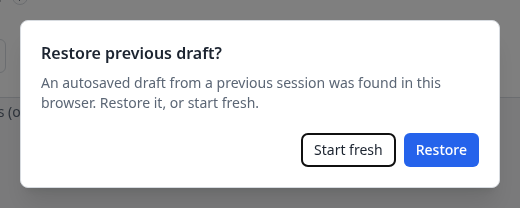
Shown on start-up when this browser holds an autosaved draft, over the blank draft it would otherwise begin with.
Mandatory fields carry a red asterisk and a red left border; optional fields
show their default as ghost placeholder text until you set them. Every
non-obvious field has an (i) help popover giving a one-paragraph explanation
and the equivalent pm-config-gen flag.
Personas
A single global persona setting controls how much of the field surface is visible. It is a view filter, never a data filter: switching personas never discards data, and a higher-tier value set by import (or by a previous session at a higher tier) is preserved and still exported even while hidden.
| Persona | Audience | Philosophy |
|---|---|---|
| Beginner | A first-time student standing up a classroom exchange | Show only what a minimal, safe exchange needs. Everything else uses safe defaults. |
| Intermediate | A TA or instructor tuning a scenario | Adds risk levels, circuit-breaker tuning, per-symbol overrides, indices, and the common auxiliary gateways. |
| Expert | A course author building the full environment | Everything: combos, per-gateway market-maker overrides, BALF/API gateways, engine tuning, and deterministic seeding. |
Because persona gates which tabs appear, the visible workspace grows as you move up:
| Persona | Tabs shown |
|---|---|
| Beginner | Basics, Sessions & Schedule, Market Maker¹, Review & Export |
| Intermediate | …the above plus Risk & Collars, Circuit Breakers, Symbols, Indices, Auxiliary Gateways, Health Monitoring |
| Expert | …the above plus Combos, Engine Tuning |
¹ The Market Maker tab appears at any persona. It is greyed out and
disabled until at least one gateway has the MARKET_MAKER role, then becomes
editable.

Beginner, Intermediate and Expert, with the current persona ticked. Switching hides or shows tabs and fields; it never discards a value.
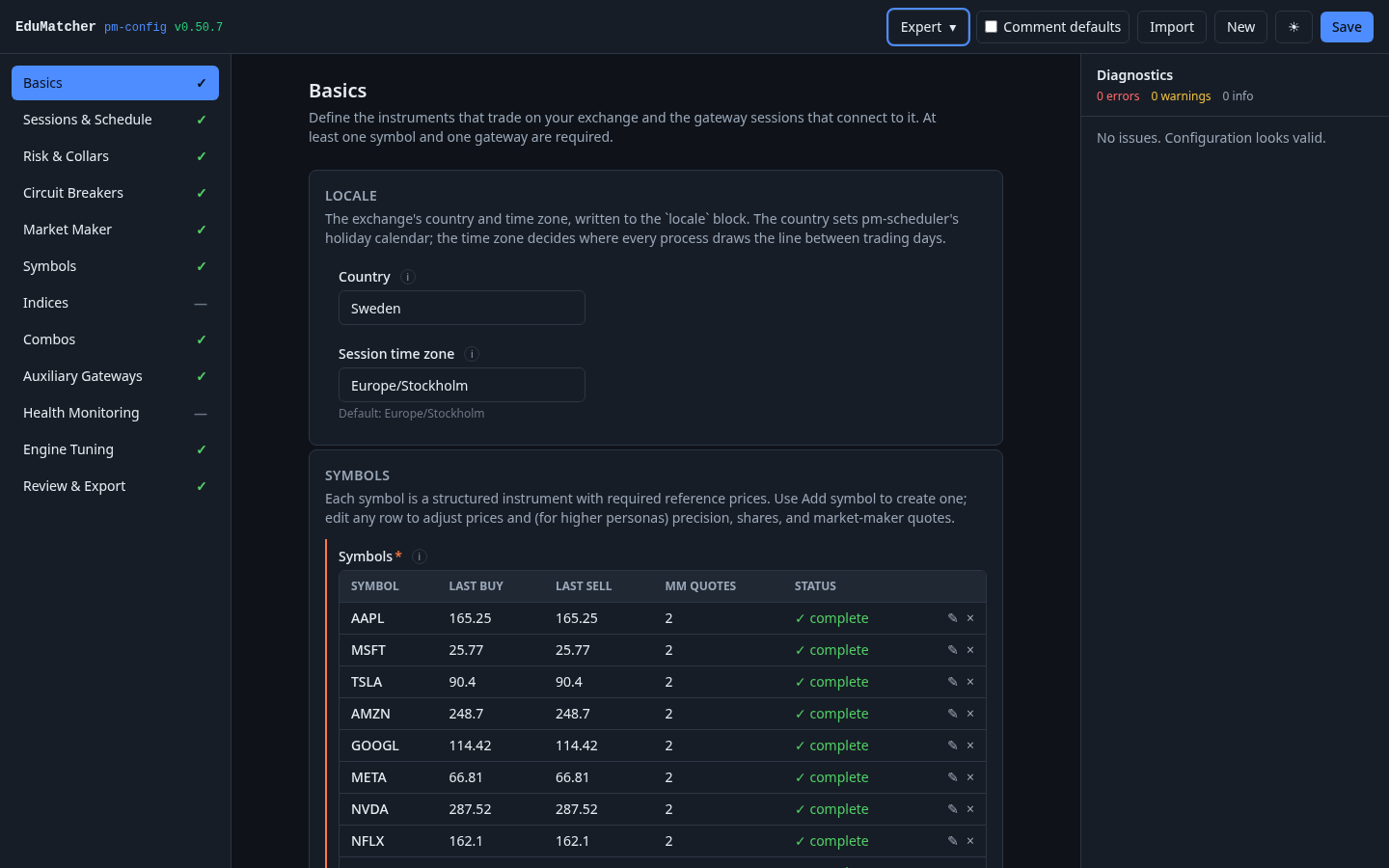
The theme toggle (☾ / ☀) switches between the light and dark palettes; the choice is remembered in this browser.
The tabs at a glance
| Tab | Persona | Configures | Reference chapter |
|---|---|---|---|
| Basics | Beginner | The locale (country, session time zone), the symbol universe, and the participants list | Participants, ALF gateway |
| Sessions & Schedule | Beginner | Whether the scheduler drives the trading day, and the phase times | Auctions & Session Scheduling |
| Risk & Collars | Intermediate | The global collar band, named risk levels, and collar enforcement | Price collars |
| Circuit Breakers | Intermediate | The halt ladder, reference window, reopening auction (ACE), and CB enforcement | Circuit breakers |
| Market Maker | Beginner¹ | Obligation defaults and startup quote seeding | Market Making |
| Symbols | Intermediate | Per-symbol overrides for every setting, plus MM quotes | Symbol universe |
| Indices | Intermediate | Cap-weighted index definitions and constituents | Market Index |
| Combos | Expert | Multi-leg startup seed orders | Combo Orders |
| Auxiliary Gateways | Intermediate | Post-Trade, Market-Data, BALF, and API gateway processes | RALF, CALF, BALF, API |
| Health Monitoring | Intermediate | Health beacons and pm-monitor: liveness timing, history, alert thresholds (network at Expert) |
Health Monitoring |
| Engine Tuning | Expert | Low-level runtime retention and throttling knobs, and the auction indicative-price interval | engine_tuning |
| Review & Export | Beginner | Diagnostics summary, YAML preview, download, and verify | Config Verifier |
¹ Editable only once a MARKET_MAKER gateway exists; before that the tab is
shown greyed out.
The rest of this chapter walks through the concepts behind these tabs. If you just want to produce a working file quickly, follow the market-maker workflow and then jump to Reviewing and exporting.
Basics: symbols and gateways
The Basics tab is the mandatory foundation: at least one symbol and one participant are required before anything can be exported.
- Locale — the exchange's country (pm-scheduler's holiday calendar)
and, from Intermediate, its session time zone (the IANA zone the
schedule's times are in and that every process uses to split events into
trading days). Both are written to the
localeblock, each only when it differs from its default (Sweden,Europe/Stockholm). An unknown time zone is an error: the engine refuses it. - Symbols are the instruments that trade on the exchange. Add them with the IPO dialog; names are uppercased automatically and must be unique.
- Participants are the sessions permitted to connect (the
participantslist), each with a role —TRADER,MARKET_MAKER, orADMIN. Roles determine which commands a session may send; see Role Privileges and the ALF gateway chapter. AMARKET_MAKERgateway unlocks the Market Maker tab and quote seeding; anADMINgateway can issue exchange-wide halt/resume commands (see ADMIN-role operator controls). Each row also sets the session's disconnect behaviour and SMP action, and a description. - Participant defaults — an SMP action and a disconnect behaviour applied
to every participant that does not set its own (
participant_defaults).
At Expert persona, each MARKET_MAKER gateway row shows a ⚙ Advanced
button — see per-gateway market-maker overrides.
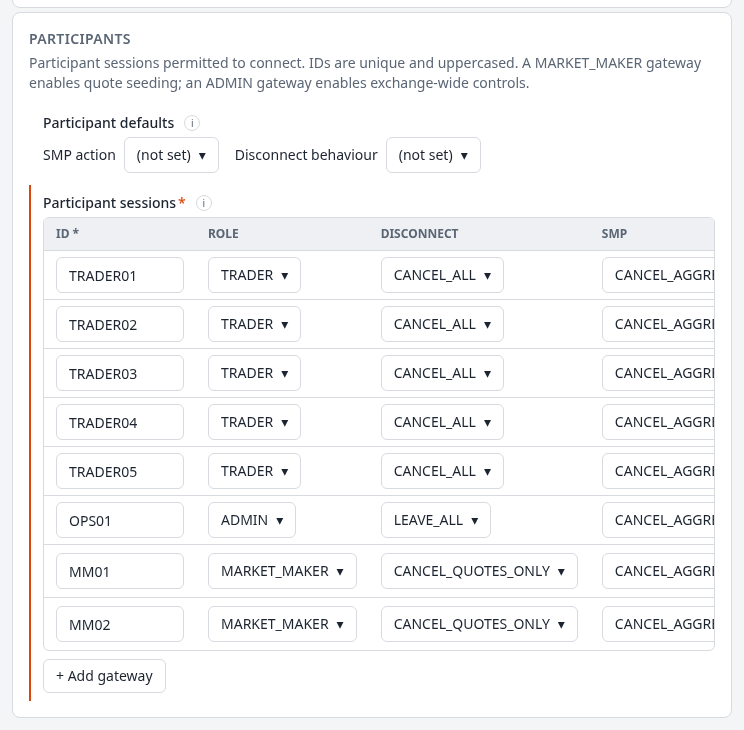
Five TRADER desks, an ADMIN and two MARKET_MAKER gateways, above the participant defaults. The table is wider than the panel: scroll it sideways for the SMP and Description columns and, on each MARKET_MAKER row, the ⚙ Advanced button (Expert).
Core concepts and workflows
Symbols and the IPO dialog
Clicking "+ Add symbol" on the Basics or Symbols tab opens the "List a new symbol (IPO)" dialog rather than a plain name field.
The mental model is that adding a symbol is like an initial public offering: on the very first tick the engine has no trade history, so you must supply the starting prices explicitly — otherwise the collar and circuit-breaker reference prices have nothing to anchor to. The dialog captures a single reference price and derives everything that must agree with it (last-trade prices, and the market maker's opening quote) in one place, so the book, the last price, and the risk anchors all start consistent. See also Collar reference price selection.
The dialog collects:
| Field | Purpose |
|---|---|
| Symbol name | Uppercased automatically; must be unique. |
| IPO reference price | The opening mid-price. Derives last_buy_price / last_sell_price and becomes the collar's static reference on day one. |
| Tick decimals (Intermediate+) | Price precision (0–8). Defaults to the global value. See tick size. |
| Outstanding shares | Always required to save, with a sensible default pre-filled; matters most if the symbol will be an index constituent. |
| Primary market maker | Which MARKET_MAKER gateway receives the auto-derived opening quote. Shown, and required, whenever at least one MARKET_MAKER gateway is configured — at any persona. |
| Opening spread (ticks) | Spread, in ticks, used to auto-derive the primary market maker's opening bid/ask around the reference price. Shown alongside Primary market maker. |
| Quote size | Quantity used for the auto-derived primary market maker quote. Shown alongside Primary market maker. |
| Additional market makers (Expert) | Extra bid/ask quote rows for MM gateways beyond the primary one. |
If a MARKET_MAKER gateway is configured, the primary market-maker quote is
always auto-derived from Opening spread and Quote size applied to the
reference price — it is never left blank. Mid-range seeding
is a separate mechanism that applies when a symbol has no explicit quote at
all (for example, one added outside the IPO dialog).

AMD listed at 42.50. The primary market maker's opening quote is derived from the opening spread and quote size and shown below them (bid 42.48 / ask 42.52, 500 × 500); an additional market-maker row gives MM02 its own explicit quote.
Importing and exporting symbols
Next to "+ Add symbol" on the Basics and Symbols tabs, Import symbols…
reads a CSV or JSON file (chosen by its .csv / .json extension) and lists
every symbol in it at once. Export CSV and Export JSON write the
current symbols in the same format, so an exported file can be edited and
imported into another draft.
Each row holds exactly the IPO dialog's fields, and an imported row creates the same symbol the dialog would:
| Column | Required | Blank means |
|---|---|---|
symbol |
yes | — |
reference_price |
yes | — |
outstanding_shares |
no | the dialog's default, 1,000,000,000 |
tick_decimals |
no | the global tick decimals |
mm_gateway |
no | no explicit market-maker quote (mid-range seeding applies) |
spread_ticks |
no | 2 (needs mm_gateway) |
quote_size |
no | 1000 (needs mm_gateway) |
symbol,reference_price,outstanding_shares,tick_decimals,mm_gateway,spread_ticks,quote_size
AAPL,182.50,15000000000,2,MM01,2,500
MSFT,410.00,,,,,
The JSON form is an array of objects with the same keys; a missing key or
null counts as blank:
[
  { "symbol": "AAPL", "reference_price": 182.5, "mm_gateway": "MM01" },
  { "symbol": "MSFT", "reference_price": 410 }
]
An import is all-or-nothing. The whole file is checked first, and any problem
rejects it: an unknown column or key, a symbol that already exists or appears
twice, a value out of range, or an mm_gateway that is not a
MARKET_MAKER gateway. The error dialog lists every problem with its line
(CSV) or entry (JSON) number, and the draft is unchanged.
Export writes only these fields. Per-symbol overrides such as risk level,
collars, order limits and circuit-breaker settings are not included. After
editing, a symbol may no longer fit the IPO fields: its last buy and last sell
prices may differ, or it may have a hand-edited or second market-maker quote.
Such a symbol is exported as closely as the fields allow (last buy becomes
reference_price), and a dialog names it and gives the reason, because
re-importing the file would not reproduce it.
CSV files follow the usual quoting rules: a cell that contains a comma or a
double quote is wrapped in double quotes, and a double quote inside it is
doubled ("Says ""hi"", twice"). Export writes cells this way, and import
reads them.
Importing and exporting participants
The Participants table on the Basics tab has the same three buttons next to "+ Add gateway": Import participants…, Export CSV and Export JSON. Each row holds exactly the table's fields, and an imported row creates the gateway "+ Add gateway" would:
| Column | Required | Blank means |
|---|---|---|
id |
yes | — |
role |
no | TRADER |
disconnect_behaviour |
no | the role's default (CANCEL_ALL for TRADER, CANCEL_QUOTES_ONLY for MARKET_MAKER, LEAVE_ALL for ADMIN) |
smp_action |
no | inherit the participant default |
description |
no | no description |
id,role,disconnect_behaviour,smp_action,description
DESK01,TRADER,,CANCEL_AGGRESSOR,"Equities desk, floor 2"
MM01,MARKET_MAKER,,,
OPS,ADMIN,,,Operations
IDs and the role, disconnect_behaviour and smp_action values are
uppercased on import. As for symbols, the import is all-or-nothing: an ID that
already exists or appears twice, or a value that is not one of the allowed
ones, rejects the whole file.
Export writes only these fields. The Expert ⚙ Advanced market-maker settings are not included. A participant whose disconnect behaviour is (default) is written with the value it inherits now, so the engine behaves the same after a re-import. The export dialog names it, because the re-imported participant no longer follows later changes to the participant default.
The Symbols workspace
The Symbols tab (Intermediate+) has three parts, top to bottom.
Global default — the global tick decimals and the symbol universe, a list of the symbols with + Add symbol (the IPO dialog).
Per-symbol overrides — one row per symbol, with the per-symbol settings most often tuned across many symbols at once: the collar's static and dynamic bands, and the reopening auction's ACE switch, corridor and random end. A greyed cell inherits the exchange value; typing a value overrides it for that symbol, and clearing it returns the symbol to inheriting. A dot after a symbol's name marks one with overrides. For a large universe, Filter symbols…, Only overridden and the Rows page size (25, 50, 100) narrow the list. Tick rows to get the bulk toolbar: Set one of the five fields to a value and Apply it to every selected symbol, or Clear overrides to return them all to the exchange defaults.
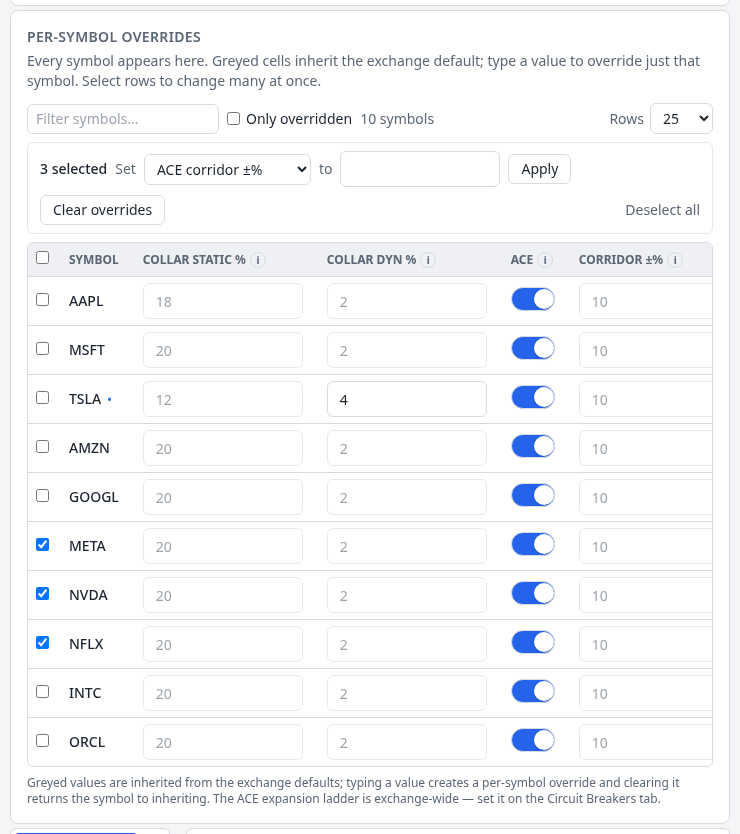
META, NVDA and NFLX are selected, so the bulk toolbar is shown. TSLA carries a dynamic-band override of 4% (in full colour, marked by the dot); every other cell is greyed because it inherits.
The editor — the list of symbols on the left, the selected one on the right, through sub-tabs:
| Sub-tab | Persona | Contents |
|---|---|---|
| General | Intermediate | Tick decimals, last buy and last sell prices, outstanding shares |
| Collar & Limits | Intermediate | The assigned risk level, static/dynamic band overrides, and the order limits (max order quantity, max order value) |
| Circuit Breaker | Expert | Per-symbol ladder overrides — see Circuit breakers |
| Market Maker | Intermediate | Per-symbol obligation overrides |
| MM Quotes | Intermediate | Explicit opening quotes per MM gateway |
Two conveniences make it easy to check a symbol without losing your place:
- An 👁 eye icon on each row in the left list opens the read-only Symbol Overview without changing the current selection — so you can peek at any symbol while editing another.
- An Overview button in the detail-pane header opens the same overview for the currently selected symbol.
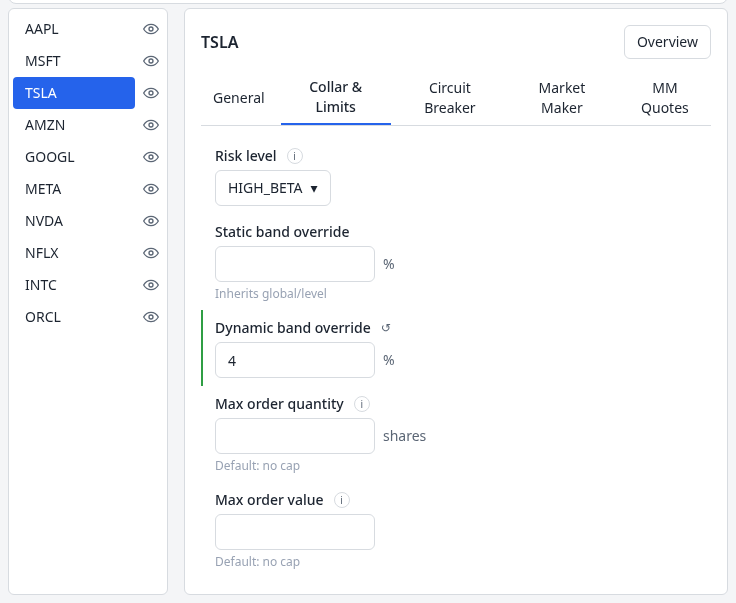
TSLA is assigned the HIGH_BETA risk level and overrides its dynamic band (4%, marked by the green edge and the ↺ reset); its static band and order limits are blank, so they inherit. The 👁 icons open any symbol's Overview without changing the selection.
Symbol overview
The Overview dialog is read-only and shows the effective values — what the engine will actually use after all inheritance and merge rules are applied — in one compact view, with each value annotated by its source. It consolidates what is otherwise spread across five sub-tabs and several global defaults.
| Section | What it shows |
|---|---|
| General | Tick decimals (per-symbol override vs global), last buy/sell prices, outstanding shares, and the active risk level (assigned or inherited default). |
| Collar (effective) | The static and dynamic band percentages that will apply, each tagged with its source (symbol override, level CORE, engine default). Flags if collar enforcement is off globally. |
| Order limits (effective) | The max order quantity and value that apply, or that the symbol has none. |
| Circuit breaker (effective) | The resolved reference window and full ladder. Per-symbol overrides appear in accent colour; inherited values are shown normally. Below the ladder, the reopening auction (ACE on/off, initial corridor, random end) and how the corridor widens. Flags if CB enforcement is off globally. |
| Market maker (effective) | The resolved obligation (enforce/max-spread/min-qty) with source, any per-gateway overrides, and the effective opening quotes with an origin badge (explicit, seeded, or fill in). |
| Memberships | Which indices and combos reference this symbol — cross-references not otherwise visible from the Symbols tab. |
Use it as a final sanity check before exporting, or to diagnose why a symbol behaves unexpectedly in the engine.
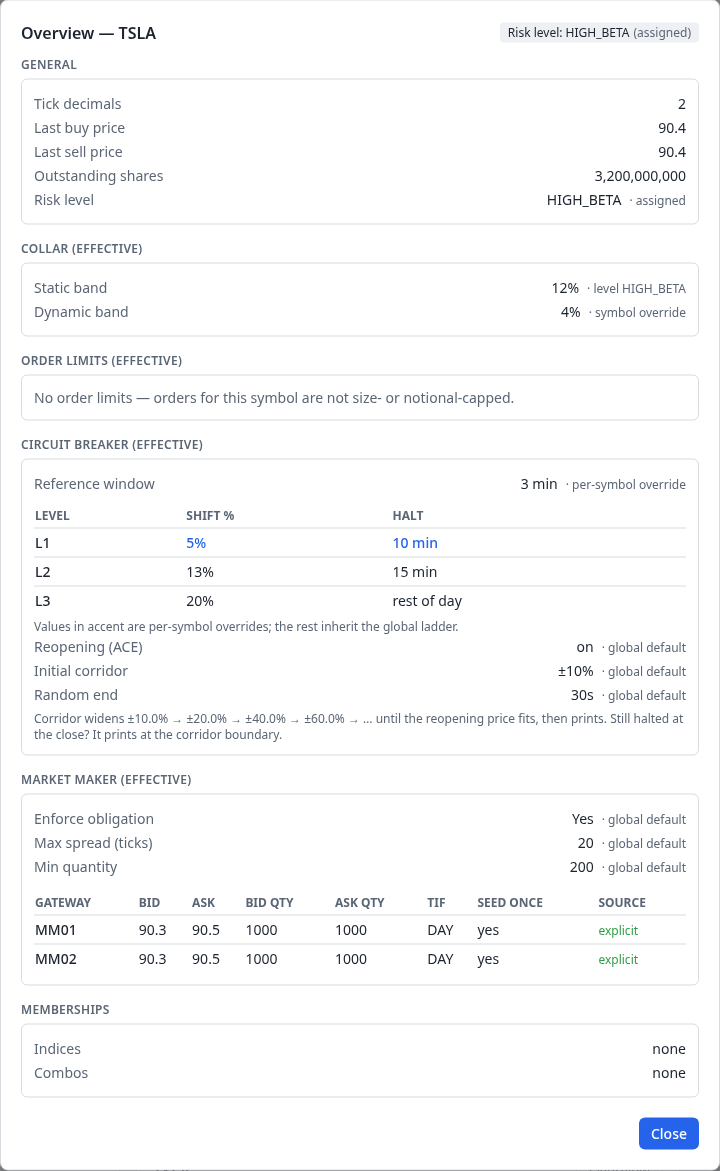
Every value carries its source: the static band comes from the HIGH_BETA level, the dynamic band and the 3-minute reference window are symbol overrides, and L1's 5% and 10 min are per-symbol ladder overrides, in accent colour. Both market makers' opening quotes are explicit.
Risk and collars
A collar rejects orders priced too far from a reference price, protecting the book from fat-finger errors. The static band anchors to a session reference; the dynamic band tracks near-live prices. The full mechanism — band definitions, which orders are checked, and how it differs from circuit breakers — is described in Price collars; order-level behaviour is covered in Order Types.
On the Risk & Collars tab (Intermediate+) you can:
- Set a global band, which creates the
DEFAULTrisk level applied to every symbol that does not specify its own. - Define named risk levels (e.g.
CORE,HIGH_BETA) that symbols reference by name — see Global level profiles and per-symbol risk-level assignment. - Toggle collar enforcement globally (
enforce_collars). Because this tab is Intermediate, a Beginner draft keeps enforcement at its safe default (on).
Per-symbol band overrides live on the Symbols → Collar & Limits sub-tab (or the per-symbol overrides table) and take precedence over the level and global values.
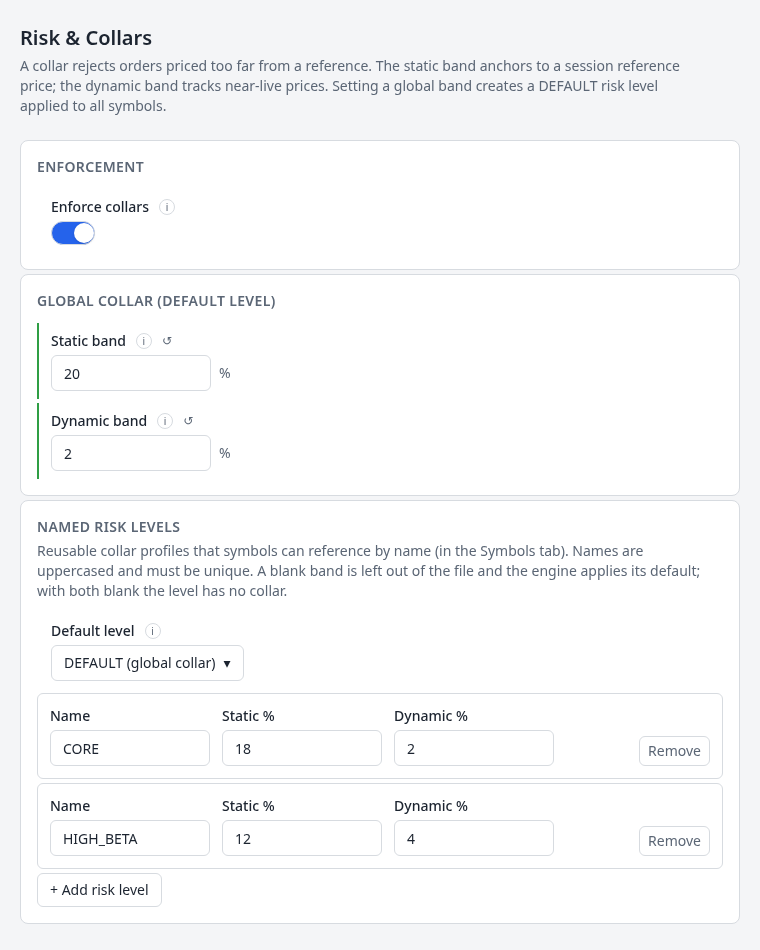
Collar enforcement on, the global band that defines the DEFAULT level (20% / 2%), and two named levels, CORE and HIGH_BETA, that symbols can be assigned.
Circuit breakers
A circuit breaker halts trading in a symbol when it moves too far from its rolling reference. A halt is the call phase of a reopening auction: each ladder level has a shift % (how far triggers it) and a call-phase minimum (how long the auction collects orders at least), or halts for the rest of the day. Automated Corridor Expansion (ACE) then decides whether the auction may end: the symbol reopens only if the indicative price falls inside a corridor around the reference price; otherwise the corridor widens and another call phase begins. The complete model — the rolling reference window, day-one behaviour, and ACE — is in Circuit breakers.
The Circuit Breakers tab (Intermediate+) has four parts:
- Enforcement — the global
enforce_circuit_breakersswitch, and Write exchange defaults: off leaves thecircuit_breaker_defaultsblock out of the file, so a symbol without a circuit-breaker override of its own has no circuit breaker at all. - Reference window — the rolling reference window, in minutes.
- Ladder — Level, Shift %, Call phase min (min), and Rest of day. At Expert persona you can add or remove levels.
- Reopening auction (ACE) — whether ACE is on, the initial corridor (±%), the random end (seconds), an optional random seed, and the expansion ladder: how much each further call phase widens the corridor and how long it lasts. The last rung repeats indefinitely, so the corridor eventually contains any price and every halt resolves on its own.
Per-symbol overrides live on the Symbols → Circuit Breaker sub-tab (Expert), which mirrors the ladder but treats blank cells as "inherit the global ladder value". You can override the shift, the call-phase minimum (including "rest of day") and the reference window for a single symbol, or add a level only that symbol has. The ACE switch, corridor and random end are overridden per symbol in the per-symbol overrides table.
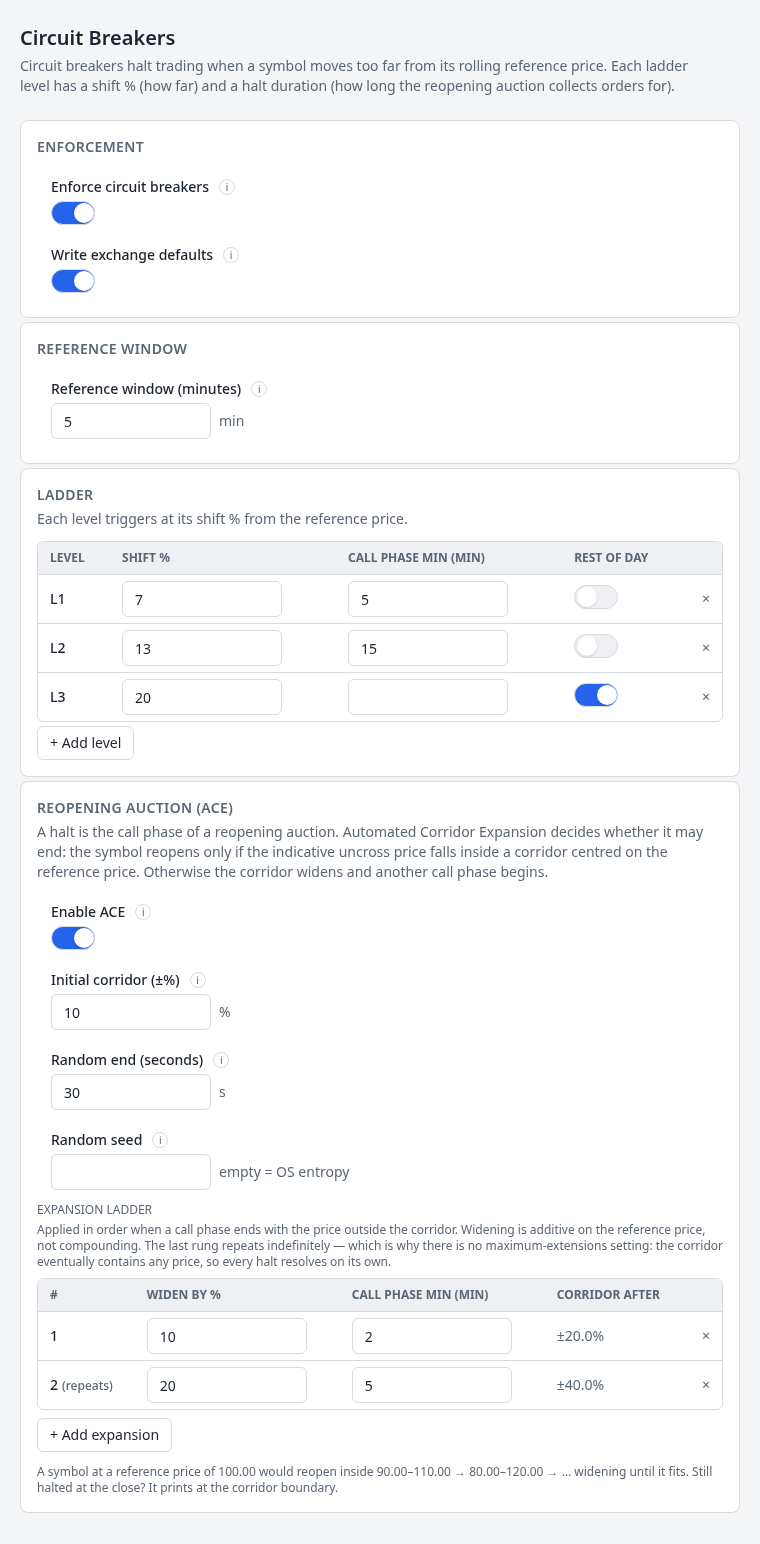
The s10-complex ladder: L1 at 7% for a 5-minute call phase, L2 at 13% for 15 minutes,
and L3 at 20% for the rest of the day. ACE reopens inside ±10%, widening to ±20% and then
±40% (repeating) if the indicative price is still outside.
Sessions and schedule
A trading day moves through phases — pre-open, opening auction, continuous
trading, closing auction — driven by the pm-scheduler
process. The Sessions & Schedule tab (Beginner) toggles
sessions_enabled and, from Intermediate,
edits the phase times.
The GUI enforces that phase times are strictly increasing as you type — the same rule the engine applies — so an out-of-order schedule is caught immediately rather than at export. See Session phases for what each phase means.
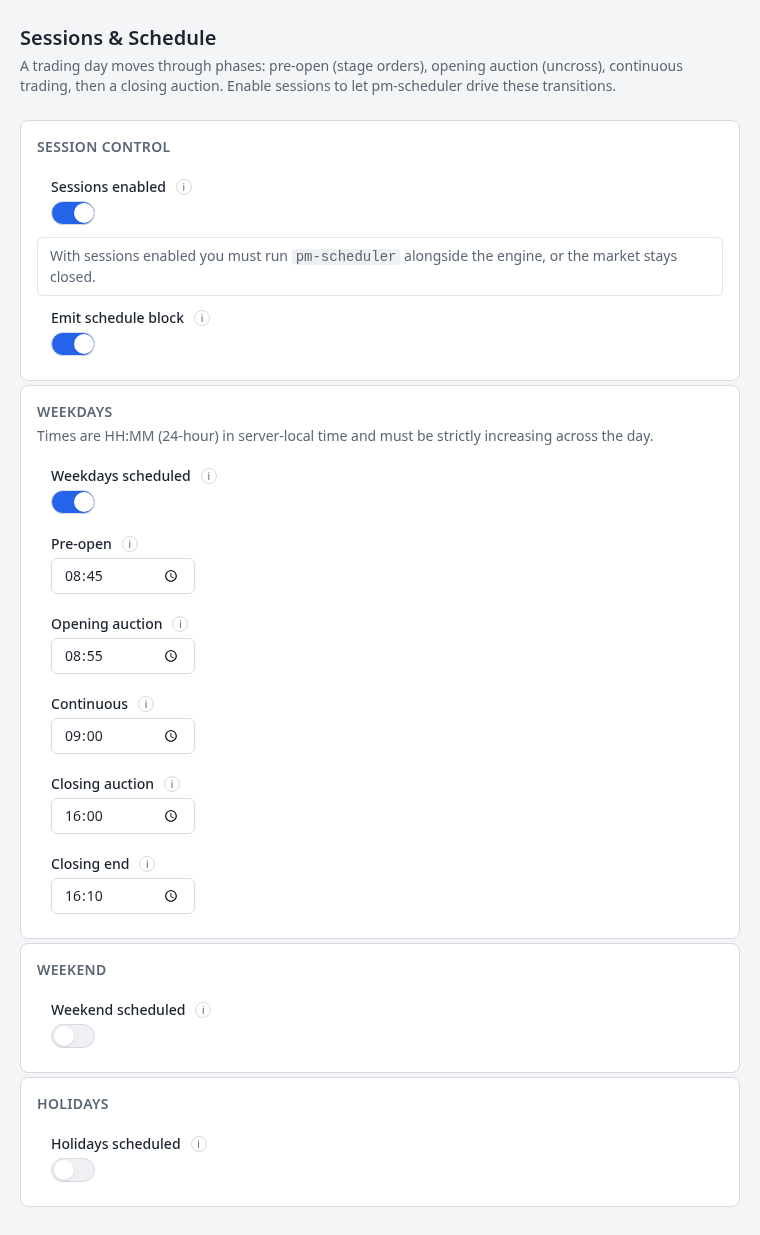
Sessions on, so pm-scheduler must run; the weekday phase times from pre-open (08:45) to
the end of the closing auction (16:10). Weekends and holidays are not scheduled.
Sessions imply a running scheduler
Turning sessions_enabled on means the engine starts CLOSED and waits for
pm-scheduler to drive transitions. If you enable sessions, remember to run
the scheduler alongside the engine, or the market stays closed.
Market makers
Market makers supply the two-sided quotes that give a symbol a tradeable book from the first moment. The GUI models this in three independent layers plus a quote-seeding mechanism. Understanding the layers avoids duplicate work and confusion about which value "wins". The engine-side reference is Market Making; obligation enforcement is detailed under MM obligations enforcement.
Layer 1 — Global obligation defaults (Market Maker tab)
The Market Maker tab holds the exchange-wide defaults applied to every
symbol and every MARKET_MAKER gateway unless overridden:
- Enforce MM obligations — whether the engine checks quote-width and size compliance at all.
- Max spread (ticks) — the widest allowed bid–ask spread; wider quotes are rejected (spread constraint).
- Min quantity — the minimum displayed size on each side (minimum size constraint).
This layer maps to mm_obligation_defaults in the YAML
(reference).
Layer 2 — Per-symbol obligation overrides (Symbols → Market Maker)
The Symbols → Market Maker sub-tab relaxes or tightens the obligation for one
instrument. (inherit) on a field writes nothing (the global default applies);
setting a value emits an mm_obligation_defaults.symbols.<SYM> entry that
overrides only that field. Use it when, say, a less liquid symbol needs a wider
allowed spread. See per-symbol overrides.
Layer 3 — Per-gateway, per-symbol overrides
At Expert persona, the ⚙ Advanced dialog on each MARKET_MAKER gateway
row (Basics tab) provides the finest-grained control:
- Flat gateway overrides —
enforce_mm_obligation,mm_max_spread_ticks,mm_min_qtyfor every symbol this gateway quotes. - Per-symbol table — overrides for specific symbols on this gateway, written
as
participants[*].mm_obligations.<SYM>(the nested keys aremax_spread_ticks/min_qty, without themm_prefix — a format quirk the GUI handles for you).
The dialog also sets the gateway's
quote refresh policy — when seeded
quotes are inactivated after a fill. The default INACTIVATE_ON_ANY_FILL suits
most scenarios.
Precedence (highest to lowest):
Per-gateway per-symbol  (mm_obligations.<SYM>)
  → Per-gateway flat    (gateway.mm_max_spread_ticks / mm_min_qty)
    → Per-symbol global (mm_obligation_defaults.symbols.<SYM>)
      → Global defaults (mm_obligation_defaults)
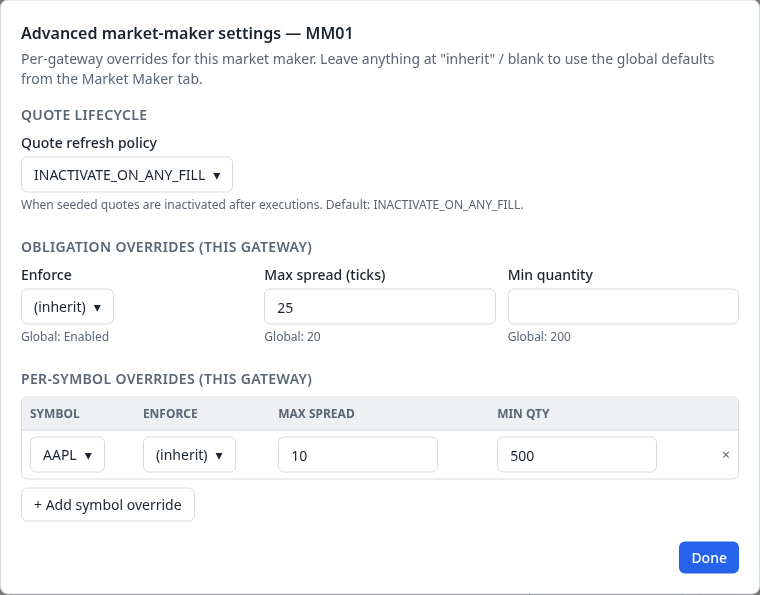
MM01 keeps the default quote refresh policy, allows itself a 25-tick spread instead of the global 20, and has a stricter AAPL override: at most 10 ticks wide, at least 500 on each side.
Quote seeding: mid-range vs explicit
Before the engine starts there must be resting quotes in the book (see startup seeding). The GUI offers two ways to supply them, plus an automatic fallback.
Option A — Explicit quotes (highest precedence). On the Symbols → MM
Quotes sub-tab you enter a specific bid_price / ask_price / bid_qty /
ask_qty for each symbol × MM gateway pair. Every column header has an (i)
help popover; the most-asked-about one is Seed once:
When on, the engine injects this quote only if it has no prior book state for the symbol, so a restart with existing history will not re-inject it. Turn it off to (re)seed on every startup regardless of history.
See controlling when seeds apply and choosing TIF for seeds.
Require MM seed quotes (the default, visible at every persona) controls
whether stubs are written at all: on, every symbol must end up with at least
one market_maker_quotes entry per MARKET_MAKER gateway, falling back to a
null-price stub (below) when neither Option A nor Option B supplies one; off,
a symbol with no explicit quote simply gets no stub, for a genuinely empty
book at startup. This maps to require_mm_seed_quotes in the YAML (the CLI's
--no-mm-seed-quotes flag turns it off).
Option B — Global mid-range seeding. On the Market Maker tab, set a Seed
MM mid-range (e.g. 100 to 300). The builder computes one deterministic
midpoint and applies it to every symbol:
midpoint = (min + max) / 2     # arithmetic mean, snapped to the tick grid
bid      = midpoint − 1 tick
ask      = midpoint + 1 tick
The same midpoint applies to every symbol
A mid-range of 200–220 gives every symbol a midpoint of 210, so AAPL and
TSLA both open with bid: 209.99 / ask: 210.01 (at tick_decimals = 2). The
range is averaged into a single value, not distributed across symbols. If
you need different opening prices per symbol, use explicit quotes (Option A).
Two related switches (Intermediate+) accompany mid-range seeding:
- Seed last prices from MM — derives
last_buy_price/last_sell_pricefrom the same midpoint so the collar's static reference matches the opening quote. Requires a mid-range. - Seed placeholder last prices — emits
last_buy_price: null/last_sell_price: nullfor instruments whose reference price is managed externally.
Fallback — null stub. If neither an explicit quote nor a mid-range is
supplied (and Require MM seed quotes is on), the builder emits
bid_price: null / ask_price: null. The Quote Stub Review flags this and the
Review tab blocks export until it is resolved.
A workflow for a new market maker
A logical order that avoids rework:
- Add a
MARKET_MAKERgateway (Basics). Give it a clear ID likeMM01. At Expert, review its quote refresh policy in the ⚙ dialog. - Set global obligation defaults (Market Maker tab): max spread, min quantity, and whether to enforce. Leave defaults for a simple classroom exchange.
- Choose a seeding strategy. Quick: set a mid-range (e.g.
100–100) and enable Seed last prices from MM. Realistic: leave the mid-range unset and plan to enter explicit quotes per symbol. - Add symbols with the IPO dialog. If you chose explicit quotes, add one MM Quotes row per gateway for each symbol.
- Check the Quote Stub Review (below) — every row must be green before export.
- Adjust per symbol (optional) on the Symbols → Market Maker sub-tab, or per gateway in the ⚙ dialog.
- Verify with the Symbol Overview before exporting.
The Quote Stub Review
The Market Maker tab's Quote Stub Review gives a go/no-go status for every symbol × MM gateway pair:
| Status | Meaning | Action |
|---|---|---|
| ✓ quote defined | An explicit quote with both prices is set | None |
| ✓ seeded from mid-range | The mid-range will compute prices at export | None |
| — no quote written | This gateway has no stub — the symbol's explicit quotes cover a different gateway only, or Require MM seed quotes is off | None (this is a normal, intentional state, not an error) |
| ✗ no prices — fill in before starting the engine | Require MM seed quotes is on but neither an explicit quote nor a mid-range supplied one | Add a quote or set a mid-range |
Export is blocked while any row is unresolved.
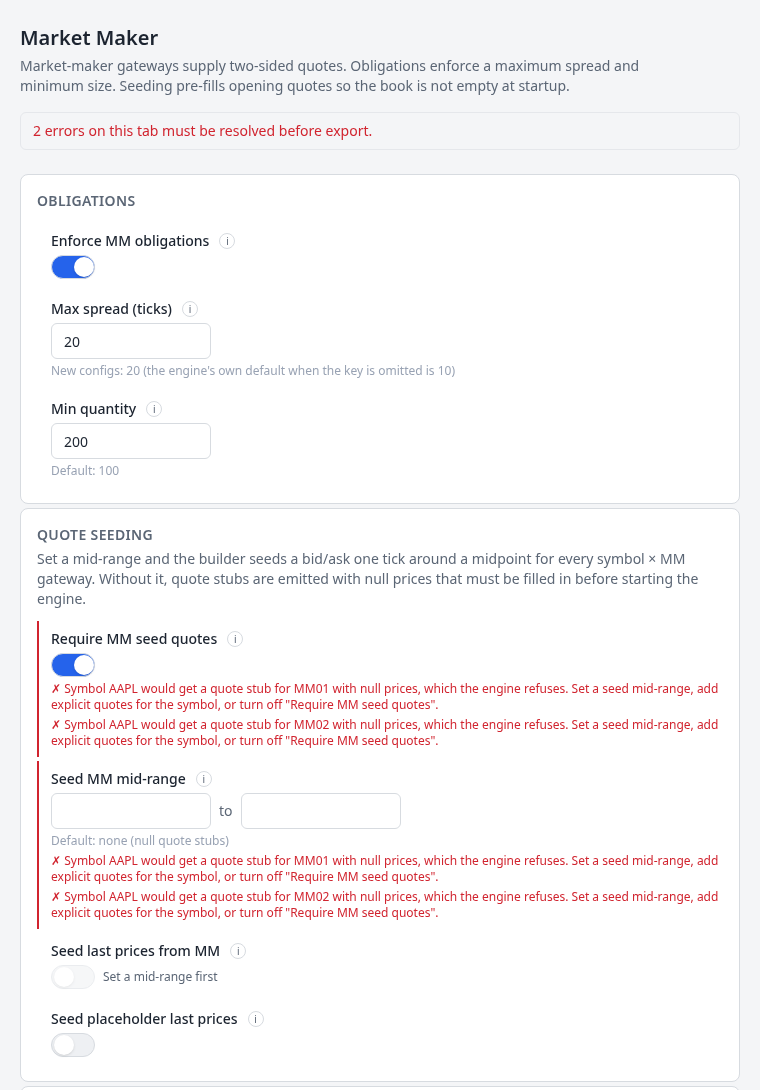
AAPL's explicit quotes were removed and no mid-range is set, so its stubs would have null prices: the tab reports two errors, which are shown on the two fields that would resolve them.

AAPL has no prices for either gateway; MSFT has an explicit quote for MM01 only, so MM02 gets none written; TSLA has explicit quotes for both. Setting a seed mid-range turns AAPL's rows into "✓ seeded from mid-range".
Indices
The Indices tab (Intermediate+) defines cap-weighted indices and their
constituents. Each constituent must be a configured symbol with
outstanding_shares set (the GUI flags any that are missing). The calculation
model and field reference are in Market Index.
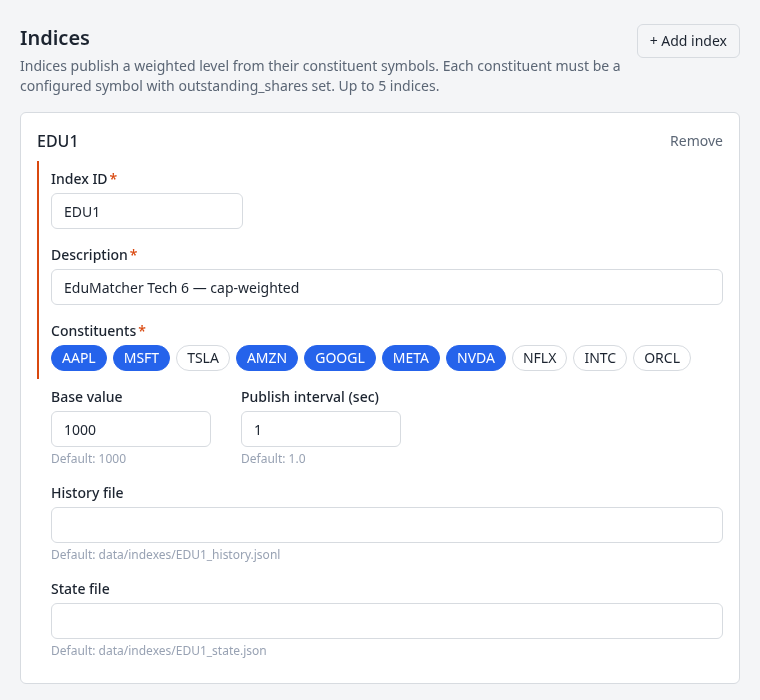
EDU1, a cap-weighted index of six of the ten symbols, picked by clicking them. Base value, publish interval and the history and state files show their defaults.
Combos
The Combos tab (Expert) builds multi-leg startup seed orders — pairs, spreads, hedged entries, and market-maker spreads. Prices are entered as decimal display values and converted to ticks per each leg symbol's precision. See Combo Orders for the strategy background and the COMBO order type for lifecycle behaviour.
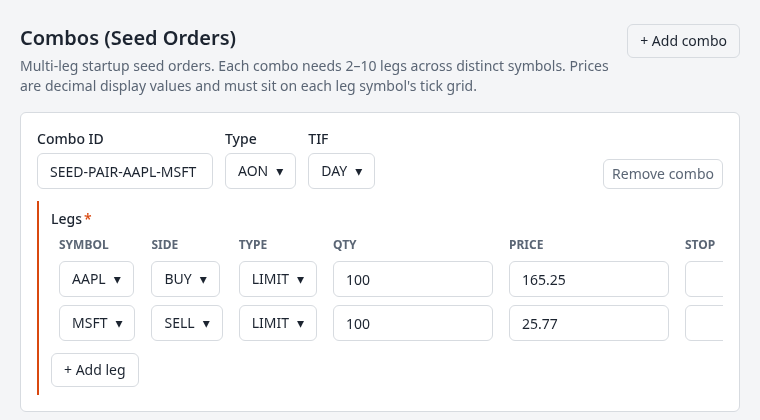
The s10-complex pair: an all-or-nothing combo that buys 100 AAPL and sells 100 MSFT
at their opening prices. The legs table scrolls sideways for the stop price and SMP.
Auxiliary gateways
The Auxiliary Gateways tab (Intermediate+) configures the optional network services around the engine, each on its own sub-tab. Two sub-tabs are visible at Intermediate; the rest — including the primary ALF gateway's own advanced tuning — only appear at Expert:
| Sub-tab | Persona | Process | Reference |
|---|---|---|---|
| ALF | Expert | ALF — the primary text order-entry gateway's own tuning (heartbeat/handshake/idle timeouts, connection and rate limits) | ALF Gateway |
| Post-Trade | Intermediate | RALF — fills, drop-copy, audit | Post-Trade (RALF) |
| Market-Data | Intermediate | CALF — top-of-book, trades, index | Market Data Feed (CALF) |
| BALF | Expert | Binary ALF gateway | BALF Gateway |
| Drop-Copy | Expert | DC1 — a lightweight TCP relay of live fill notifications, independent of RALF | Drop-Copy Gateway |
| Log Server | Expert | pm-log-srv — the centralized log collector every other process connects to, plus its optional LALF-PS live-distribution socket pair |
Log Server |
| API | Expert | REST/WebSocket gateway | API Gateway |
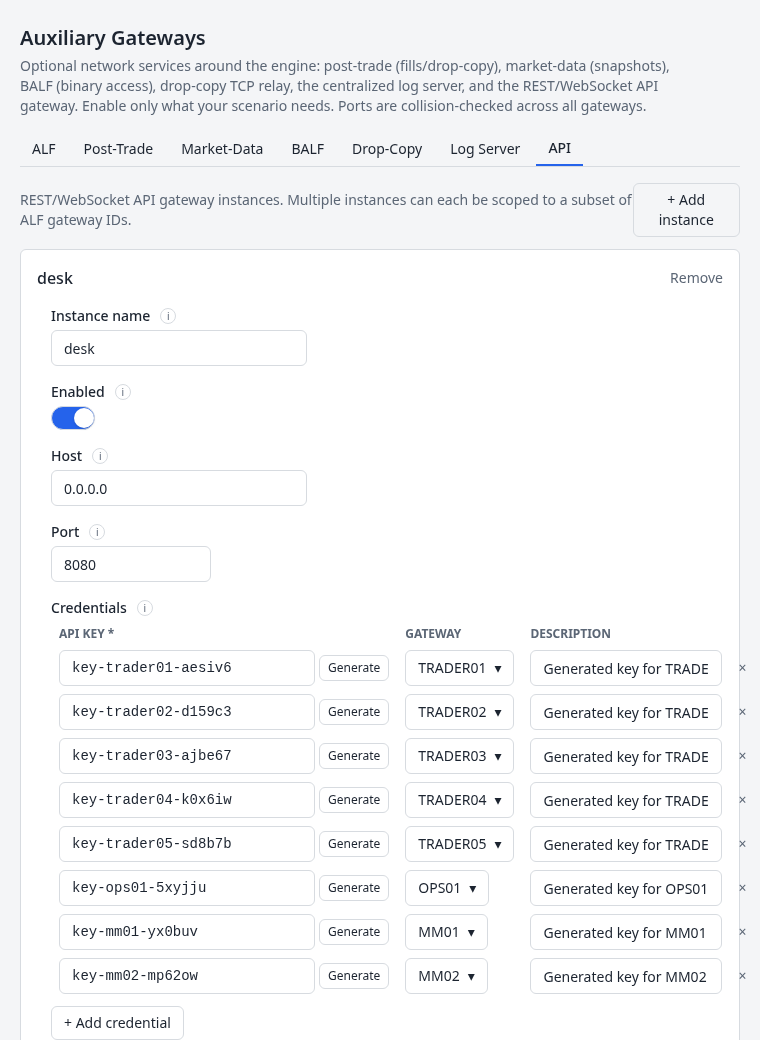
The desk instance on port 8080 with one credential per participant; Generate makes a
fresh random key. A second instance, dashboards, follows below it with the read-only key.
Generate keys for participants… opens a list of every participant, all
selected by default, with Select all / Select none. Each selected
participant gets one random key bound to it, in pm-config-gen's
key-<id>-<token> shape with the description Generated key for <ID>.
Key length sets the number of random characters in the token. The default
is 6, as pm-config-gen uses, which is easy to type in a class; use 24 or more
for anything exposed to a network you do not control. A participant that
already has a key, in this instance or another, is shown but cannot be
selected, because a participant may have keys in only one instance. A row's
Generate button and + Add credential make keys in the same shape,
labelled readonly for a read-only key (key-readonly-…). They use the
length last used in the dialog, which this browser remembers (6 until then).
The API credentials in separate files switch on the Review & Export tab
turns credentials files on for every instance at once. A single instance
writes to api_keys.yaml, as pm-config-gen --api-keys-for does. Several
instances each get api_keys_<instance>.yaml, because instances sharing a
file would each accept every key in it. A name an instance already has is
kept. Turning the switch off writes all credentials inline again. An instance
added while it is on gets a file too.
An instance's Credentials file keeps its API keys out of the main file,
as pm-config-gen --api-keys-for does. The main file then names the file with
credentials_file:, and Download writes the keys to that file beside it.
The file holds secrets, so keep it out of version control. Instances that name
the same file all read the whole of it, so it is written once. The Review tab
flags an error if they list different credentials, or if the name is
absolute, contains .., is reserved (engine_config.yaml,
engine_config.json, market_sim.yaml), or is the name of another output
file.
Each sub-tab (other than ALF, which is always present) has its own "Write
<section> section" toggle: off omits that section from the exported file
entirely, rather than writing it with defaults. Enabling a gateway reveals its
fields; disabling it keeps your values staged but excludes the section from
the export. Ports are collision-checked across every enabled gateway — the
diagnostics drawer warns if two services would bind the same address and port.
The Log Server sub-tab is the largest of the seven: beyond the collector's
own name/bind/port/database-path/retention/batching settings, a "LALF-PS —
log distribution" section (its own on/off toggle) exposes the ZeroMQ PUB/PULL
pair that lets pm-log-console and other live viewers subscribe to rows as
they are written — lease duration, subscriber and backfill limits, and the
PUB socket's send high-water mark. See LALF-PS
for what each setting controls at the protocol level.
At Expert the Log Server sub-tab ends with Log client — every
process: the log_server.client settings that every other process reads —
how long it waits to connect, how long it keeps trying before writing its log
to a local file instead, and where. They are written only when one differs
from its default.
The API sub-tab also takes the instance's Clearing DB path (realized P&L on position rows), Market-data cache (seconds of recent trades kept so a reconnecting WebSocket client can resume), and the four engine and index bus addresses — needed only when the API gateway runs on another host than the engine. Each is written only when set.
The API sub-tab includes Order cache retention (s)
(order_retention_sec, default 3600), which bounds how long a terminal
order — FILLED, CANCELLED, EXPIRED, REJECTED — stays in the gateway's
in-memory cache. That cache backs GET /orders and the cross-gateway admin
order table, so the setting decides how far back those views reach. Resting
orders are never evicted whatever their age. 0 disables eviction entirely,
letting the cache grow for the lifetime of the process. See
API Gateway → Order cache retention.
Health monitoring
The Health Monitoring tab (Intermediate+) edits the monitor block read
by every process (its health beacon) and by pm-monitor, which judges each
process and the exchange from those beacons — see
Health Monitoring.
Write monitor section off leaves the block out of the file; monitoring then still runs, on the defaults the tab shows. To turn monitoring off, write the section and switch Monitoring enabled off. With the section written:
| Group | Persona | Fields |
|---|---|---|
| Liveness | Intermediate | Beacon interval, Hung after, Silent after (beacons) |
| Liveness | Expert | Book metrics interval |
| History | Intermediate | Raw samples kept (hours), Minute averages kept (days) |
| Alert thresholds | Intermediate | Warn and crit for each of the seven rules, each with a reset to its default |
| Network | Expert | Bind address, Host, Beacon (PULL) port, Publish (PUB) port |
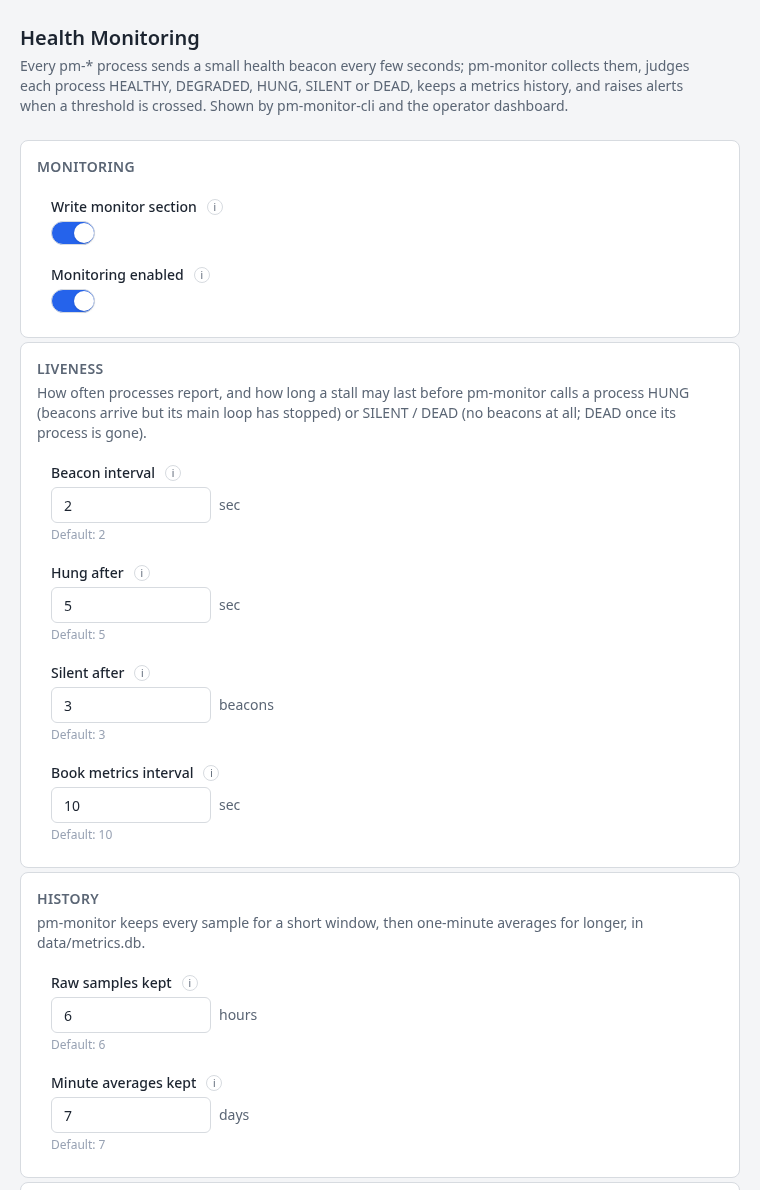
Write monitor section on, so the values are written; every field shows its default.
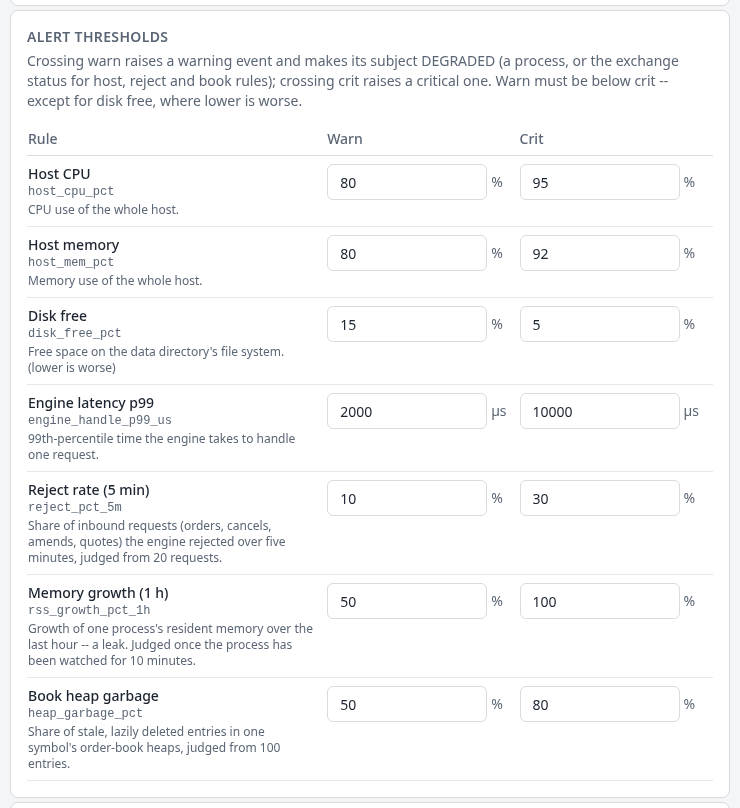
The warn and crit level of each of the seven rules, with what it measures; disk free is the one where lower is worse.
The diagnostics mirror pm-cverifier: warn must be below crit (above, for
Disk free, where lower is worse — M029); Hung after must exceed the
beacon interval (M030); a host that cannot reach the bind address is a
warning (M031); and the two ports must differ. pm-monitor's ports join the
cross-gateway port-collision check even when the section is not written,
since it then binds its defaults (5610, 5611).
Engine tuning
The Engine Tuning tab (Expert) exposes low-level performance knobs that
rarely need changing. It mirrors the grouped
engine_tuning block and currently
exposes five fields:
- Snapshot interval —
engine_tuning.snapshot_interval_sec, the minimum seconds between published book snapshots for a busy symbol. - Quote history —
engine_tuning.quote_history_maxlen, how many recently inactivated quotes per gateway are retained for QLEGS RECENT/ALL. - Drop copy buffer —
engine_tuning.drop_copy_buffer_size, how many drop-copy events are retained in memory for replay after reconnect. - Recent trades —
engine_tuning.recent_trades_maxlen, how many recent trade rows each order book keeps for snapshots and diagnostics. - Depth snapshot tolerance —
engine_tuning.depth_snapshot_tolerance_ticks, the published depth window around the last trade, measured in ticks.
A separate Auctions section holds Indicative price interval
(auction_indicative_interval_sec, default 1.0): how often the engine
broadcasts each auctioning symbol's indicative price and volume.
The GUI presents these in the same way as the rest of the application: default values are shown as hints, changing a value marks the field as explicitly set, and the reset control returns it to the engine default.
Diagnostics and live validation
Every rule runs live, on each change, and again before export. Results appear in three coordinated places:
- Field markers — a red/amber left border, an inline icon, and a tooltip on the offending field.
- Tab glyphs — each tab shows the worst severity it contains (
✗>!>✓>—). - Diagnostics drawer — the global list of every issue, each with Jump → to navigate to and briefly highlight the linked field(s). When a rule links two fields (for example a symbol's risk level and the level catalogue), both are highlighted together.
The rules mirror the CLI's own checks (undefined risk level, single gateway, no ADMIN gateway, collars/CB disabled, sessions-with-default-schedule, port collisions, out-of-order schedule) and add GUI-only structural checks (index constituents, combo legs, unknown market-maker obligation symbols, and more).
Export gate: the Review tab's Download is disabled while any error-severity diagnostic exists anywhere in the config. Warnings do not block export but require a one-time acknowledgement.
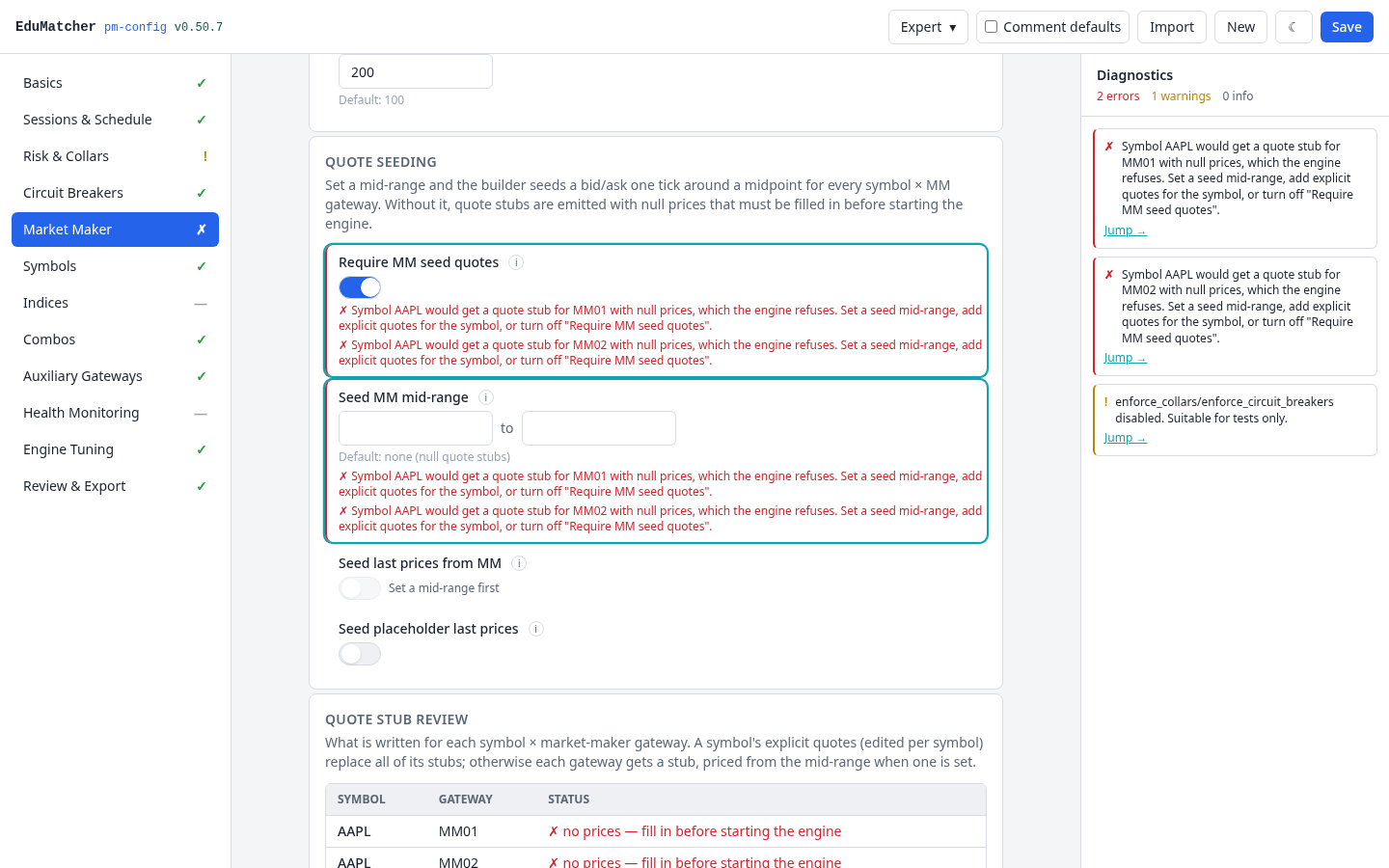
Two errors and a warning across the whole configuration. Jump → on the first error opened the Market Maker tab and outlined both fields it links. The navigation shows the worst severity per tab: ✗ on Market Maker, ! on Risk & Collars.
Importing an existing configuration
Import (top bar) loads an existing engine_config.yaml into the form so you
can edit it visually. The GUI maps the file directly into its internal model and
opens the Review tab first, reporting the health of what you loaded.
Anything the GUI does not model — a hand-added section, or a field from a newer schema — is preserved verbatim in a per-section "unmapped YAML" passthrough and re-emitted unchanged on export, so import → edit → export never silently drops data. A banner marks any tab that carries unmapped content.
A config split with include: (from pm-config-gen --split, or this GUI's
Separate symbol and participant files option) is imported by selecting
the main file together with every file it includes in the same file dialog.
The GUI merges them with the engine's rules: lists concatenate, mappings merge
one level deep, and a key defined twice is an error. It then turns on
Separate symbol and participant files, so exporting writes the split
again. A split exported by this GUI or by pm-config-gen --split round-trips
file for file. Any other layout, such as schedules in an included file or
different file names, merges just as the engine would. A note then says that
export writes the standard layout instead: symbols in symbols.yaml,
participants in participants.yaml, and everything else in the main file.
An API gateway's credentials_file works the same way: select the file
together with the config, and the GUI reads the credentials from it. The path
is relative to the file that defines the gateway. The GUI keeps the file
name, so the export writes the keys to that file again, not into the main
file.
Import refuses what the engine refuses: an include or credentials file path
that is absolute or contains .., a reserved name (engine_config.yaml,
engine_config.json or market_sim.yaml beside the main file), an include
listed twice, nested includes, and a gateway with both credentials and
credentials_file. It also refuses a selection it cannot resolve: a file the
config names that was not selected, a selected file the config does not name,
or two named files with the same name in different directories. The browser
sees only file names, not paths.
A file written by an earlier config-gui may carry a top-level country,
which no process reads. Import does not convert it (it is kept as unmapped
YAML); set the country again on the Basics tab so it is written under
locale, where the scheduler looks.
Comments are not round-tripped
The GUI is a structural editor, not a text editor. It regenerates the
header/comment block fresh (matching pm-config-gen's convention) but does
not preserve inline comments from the imported file.

The s300-sim file (300 symbols, 112 participants) imports without errors. The summary
groups what remains by tab: collar enforcement is off (a warning), sessions use the
default schedule, and the universe is large (both informational).
Reviewing and exporting
The Review & Export tab (Beginner) is the final pass:
- Diagnostics summary — the full issue list grouped by tab.
- Output options — the download filename and the
"comment default fields" toggle (emits the full commented reference block,
matching
pm-config-gen --comment-default-config-fields; the top bar's Comment defaults checkbox is the same setting), Separate symbol and participant files (see below), and API credentials in separate files (see Auxiliary gateways). - YAML preview — a live, syntax-highlighted, read-only render of exactly what will be downloaded, with a copy-to-clipboard button. This preview is the dry-run view. With separate files, buttons above it switch between the files.
- Export actions:
- Download — writes
engine_config.yaml, plus the included files when they are separate and any API credentials file (blocked while any error exists; warnings require a one-time acknowledgement). - Verify with pm-cverifier — optional; see server-side verification.
- Download — writes
Separate symbol and participant files matches pm-config-gen --split.
With it on, the symbols are written to symbols.yaml and the participants to
participants.yaml. The main file lists both under include: and leaves the
two keys out, which keeps a config with hundreds of symbols or participants
readable. The engine merges the files back into the same configuration, so
Verify with pm-cverifier checks the equivalent single file. Download
saves all three files; your browser may ask once whether to allow multiple
downloads. Keep the files in the same directory, and give the main file a
name other than symbols.yaml or participants.yaml (the Review tab flags a
clash as an error). pm-config-deploy installs the included files together
with the main file.
The download is an authored engine_config.yaml — the file you keep and
version, not the one the exchange runs. Install it before starting anything:
That validates it, resolves every default, and writes the compiled artifact the processes actually read. Because the GUI already refuses to export while any error exists, a file downloaded from here should deploy first time; if it does not, the deploy output names the finding.
See Configuration — File Location for what compiling does, Running the Engine for starting the processes, and the Quick Start's Your Own Configuration for a first end-to-end run.
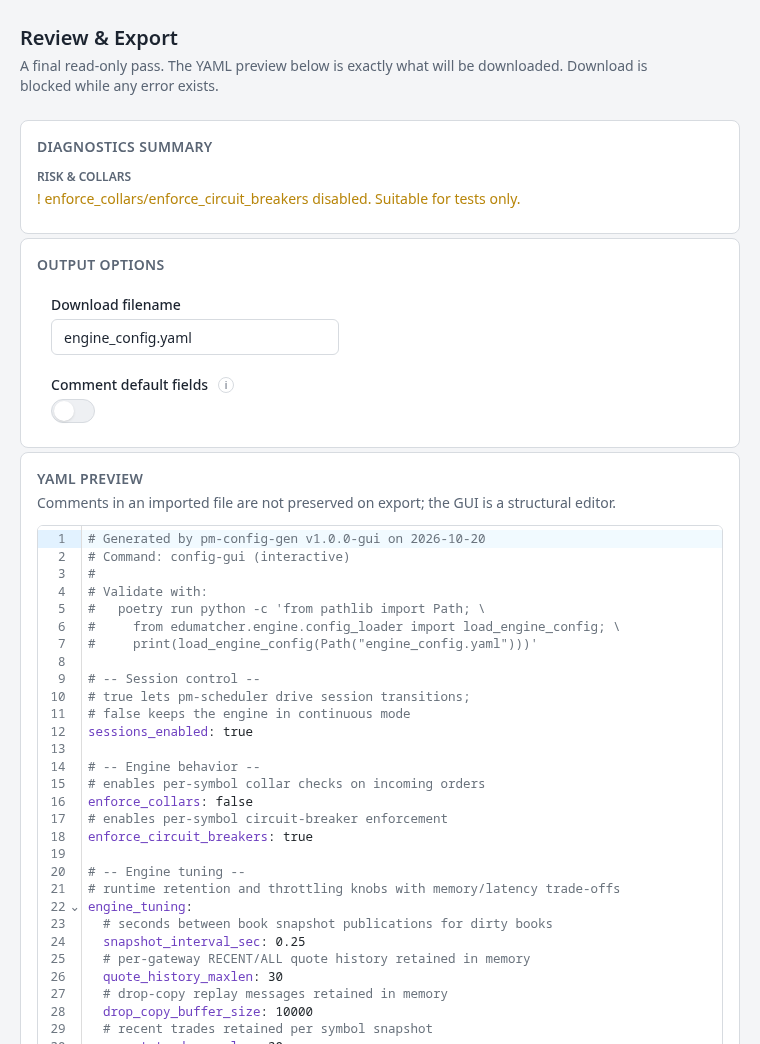
The preview is the exact file that will be downloaded — here with collar enforcement off, which is the one remaining warning.
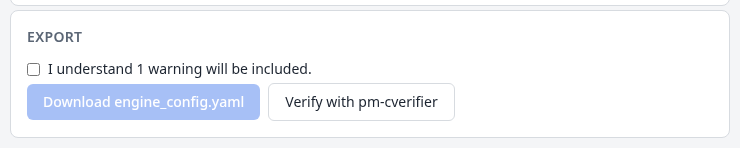
Download stays disabled until the warning is acknowledged; Verify with pm-cverifier is always available.
Deployment and operations
Single container (recommended)
For production the Fastify backend can serve the compiled frontend, so the whole
application runs as one container on one port — no reverse-proxy juggling
between a static host and an API, and no CORS configuration because everything
is same-origin. make up (or docker compose up --build) is the entry point;
see Running the application.
The image is multi-stage: it installs dependencies, builds the frontend, prunes
dev dependencies, and starts the API with STATIC_DIR pointed at the built
assets. The API serves the UI and falls back to index.html for client-side
routes.
Manual production build
To run the pieces yourself:
cd web-apps/config-gui
npm install
npm run build            # emits the static UI to apps/web/dist
STATIC_DIR="$PWD/apps/web/dist" HOST=0.0.0.0 PORT=8092 \
  npm run start --workspace @edumatcher/server
Alternatively host apps/web/dist on any static server and run the API
separately; then either reverse-proxy /api under the same origin or set
CORS_ORIGIN to the UI's origin.
Backend environment variables
All optional, read by the Fastify server:
| Variable | Default | Purpose |
|---|---|---|
HOST |
127.0.0.1 |
API bind address (use 0.0.0.0 in containers) |
PORT |
5192 |
API port (8092 in the container image) |
STATIC_DIR |
(unset) | Absolute path to the built UI; enables single-origin/single-container mode |
MAX_IMPORT_BYTES |
1000000 |
Maximum accepted import payload (1 MB) |
CVERIFIER_COMMAND |
pm-cverifier |
Command for the optional verify endpoint, e.g. "poetry run pm-cverifier" |
CORS_ORIGIN |
* |
Allowed CORS origin; restrict on shared deployments |
LOG_LEVEL |
info |
Fastify log level |
Building behind a corporate proxy or firewall
The build downloads npm packages from a registry. The Docker build does not
inherit your host's npm or proxy settings — it has its own network and an
empty npm config. Behind a proxy or a TLS-intercepting firewall, npm install
may hang (the connection is silently dropped) rather than fail fast.
First confirm the registry is reachable from inside a container:
If that hangs, pass build arguments to route around it. docker compose picks
up your shell's proxy variables automatically:
| Build arg | Purpose |
|---|---|
HTTP_PROXY / HTTPS_PROXY / NO_PROXY |
Route npm through your corporate proxy |
NPM_REGISTRY |
Use a corporate mirror (Artifactory / Nexus) instead of the public registry |
NPM_STRICT_SSL |
Set to false only as a last resort for TLS interception when you cannot install the CA |
export HTTPS_PROXY=http://proxy.corp.example:8092
export NPM_REGISTRY=https://artifactory.corp.example/api/npm/npm-remote/
docker compose up --build
TLS interception (custom root CA)
If your proxy re-signs TLS with a corporate root CA, the cleaner fix than
disabling strict-ssl is to trust that CA: copy the CA .crt into the image
and set NODE_EXTRA_CA_CERTS=/path/to/ca.crt before npm install. The build
also sets a fetch timeout, so a blocked network now fails in about two
minutes with a clear error rather than hanging indefinitely.
Optional: server-side verification
The Review tab's Verify with pm-cverifier button POSTs the generated YAML to
the backend, which shells out to pm-cverifier and
renders its authoritative report inline. It is optional and pluggable:
- If the tool is not installed, the endpoint returns
503and the UI shows a clear "not available" message; nothing else is affected. The default container image does not include the Python toolchain, so this button is inactive there by design. - To enable it, run the backend where
pm-cverifieris onPATH, or setCVERIFIER_COMMAND="poetry run pm-cverifier". - The backend invokes the tool with a fixed argument array over a temporary file — never a shell string — so no user input is interpolated into a command line.
Security notes
This is primarily a single-user local tool. Before exposing it on a shared network:
- Drafts and any generated API keys live only in the browser
(
localStorage) and in the file you download. The backend does not persist drafts and does not log request/response bodies containing credentials. - The only subprocess-spawning endpoint is
POST /api/config/verify. Put it behind authentication and rate limiting on shared deployments, and set a restrictiveCORS_ORIGIN. - Import payloads are size-capped (
MAX_IMPORT_BYTES) and parsed with a safe YAML schema.
How the GUI stays valid
The GUI re-implements the engine_config.yaml schema in TypeScript and
serializes it with the same section ordering and comment conventions as
pm-config-gen. Because the format now has two implementations, a golden-file
test (npm run verify:python) generates representative configs and runs each
through the engine's real load_engine_config(). Keeping that check green is
what guarantees GUI output loads in the engine. The developer checklist for
keeping the two in sync lives in the
config-gui/README.md.
Architecture at a glance
flowchart LR
    U["Browser (React app)"] -->|edits| S["In-memory draft (Zustand store)"]
    S -->|live| D["diagnostics engine (TypeScript)"]
    D --> U
    U -->|Import YAML| API["Fastify API"]
    U -->|Generate / Download| API
    U -. "Optional Verify" .-> API
    API -. "execFile" .-> PY["pm-cverifier (Python, optional)"]
The application is two processes: a web frontend (Vite + React) that in
development proxies /api/* to the backend, and a server (Fastify) that
imports, validates, generates, and — optionally — verifies. In production the
server can also serve the built UI, collapsing the two into one container.
Troubleshooting
| Symptom | Cause | Fix |
|---|---|---|
docker compose up --build hangs at RUN npm install |
Corporate proxy/firewall blocks the registry; the build does not inherit host settings | Confirm with docker run --rm node:22-slim sh -c "npm config set fetch-timeout 30000 && npm ping", then pass proxy/registry build args — see Building behind a corporate proxy. |
make up fails: neither podman nor docker found |
No container runtime on the host | Install Podman or Docker, or use local development. |
make up on macOS: podman machine not running |
The Podman VM is not started | make up starts it automatically; otherwise podman machine init && podman machine start. |
API calls fail in dev (ECONNREFUSED / 404 on /api) |
The backend is not running | Start npm run dev:server; the web dev server proxies /api to http://127.0.0.1:5192. |
"root" option must be an absolute path on startup |
STATIC_DIR is a relative path |
Use an absolute path, e.g. STATIC_DIR="$PWD/apps/web/dist". |
| Blank page in production, API works | UI not built or STATIC_DIR wrong |
Run npm run build, then point STATIC_DIR at apps/web/dist. |
Client route (e.g. /review) 404s in production |
Static host without SPA fallback | Let the API serve the UI (STATIC_DIR) — it falls back to index.html. |
| "pm-cverifier is not available" in the Review tab | Verifier not on PATH (expected in the default container) |
Optional; set CVERIFIER_COMMAND="poetry run pm-cverifier" or run where the tool is installed. |
npm run verify:python cannot import edumatcher |
Python env not installed | Run poetry install at the repository root. |
| Import rejected as too large | File exceeds MAX_IMPORT_BYTES (1 MB) |
Raise the limit via the env var, or trim the file. |
| Port already in use | Another process holds 8192/5192/8092 |
Change PORT (API) or server.port / proxy target in web-apps/config-gui/apps/web/vite.config.ts (web). |
| Imported config shows an "unmapped" banner | The file has sections the GUI does not model | Expected — those sections are preserved read-only and re-emitted unchanged. |
| Quote Stub Review shows "! fill in" after import | No mid-range seeding and no explicit quotes for some symbols | Set a mid-range on the Market Maker tab, or enter explicit bid/ask on each flagged symbol's MM Quotes sub-tab. |
| A tab you expected is missing | It is above the current persona | Raise the persona. |
| Market Maker tab is greyed out | No MARKET_MAKER gateway is defined yet |
Add a MARKET_MAKER gateway on the Basics tab. |
See Also
In this book:
- Engine Configuration — the
engine_config.yamlformat and thepm-config-genCLI - Config Verifier (
pm-cverifier) — the authoritative validator behind the Verify button - Risk Controls — collars, circuit breakers, and day-one (IPO) behaviour
- Auctions & Session Scheduling — session phases and
pm-scheduler - Market Index — the Indices tab
- Example Engine Configs — reference configurations to import and study
- Running the Engine — using the file you exported
Participant Guide:
- Market Making — obligations, quote lifecycle, and startup seeding
- Order Types — how orders interact with collars and circuit breakers
- Combo Orders — the Combos tab